How to Check Quarantine emails on Exchange Online

Table of Contents
    Add a header to begin generating the table of contents

    What is Quarantine

    In all organizations with cloud mailboxes, quarantine holds potentially dangerous or unwanted messages. For more information, see Quarantine.

    As an ordinary user (not an admin), the default capabilities that are available to you as a recipient of a quarantined message are described in the following table:

    Quarantine reasonViewReleaseDelete
    Anti-spam policies   
       Bulk
       Spam
       High confidence spam
       Phishing
       High confidence phishing   
    Anti-phishing policies   
       Spoof intelligence protection in anti-phishing protection for all cloud mailboxes
       Impersonated user protection in Defender for Office 365
       Impersonated domain protection in Defender for Office 365
       Mailbox intelligence impersonation protection in Defender for Office 365
    Anti-malware policies   
       Email messages with attachments that are quarantined as malware.   
    Safe Attachments in Defender for Office 365   
       Safe Attachments policies that quarantine email messages with malicious attachments as malware or phishing.   
       Safe Attachments for SharePoint, OneDrive, and Microsoft Teams that quarantines malicious files as malware.   
    Mail flow rules (transport rules)   
       Mail flow rules that quarantine email messages (directly, not by marking them as spam).   

    In supported protection features, quarantine policies define what users are allowed to do to quarantined messages based on why the message was quarantined. Default quarantine policies enforce the historical capabilities for messages as described in the previous table. Admins can create and apply custom quarantine policies that define less restrictive or more restrictive capabilities for users. For more information, see Anatomy of a quarantine policy.

    You view and manage your quarantined messages in the Microsoft Defender portal or (if an admin set it up) quarantine notifications from quarantine policies.

    Manage quarantine emails as a user

    1. In the Microsoft Defender portal at https://security.microsoft.com, go to Email & collaboration > Review > Quarantine > Email tab. Or, to go directly to the Email tab on the Quarantine page, use https://security.microsoft.com/quarantine?viewid=Email.

    2. On the Email tab, select the quarantined email message by using either of the following methods:

      • Select the message from the list by selecting the check box next to the first column. The available actions are no longer grayed out.
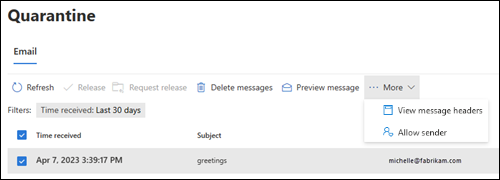
        Available actions after you select a quarantined message on the Email tab of the Quarantine page.

      • Select the message from the list by clicking anywhere in the row other than the check box. The available actions are in the details flyout that opens.

        The available actions in the details flyout of a quarantined message

      Using either method to select the message, some actions are available under More or More options.

    After you select the quarantined message, the available actions are described in the following subsections.

    Messages are automatically deleted from quarantine after the date shown in the Expires column if you don’t release or manually remove the messages.

    After you select the message, use either of the following methods to release it (deliver it to your mailbox):

    • On the Email tab: Select Release.
    • In the details flyout of the selected message: Select Release email.

    In the Release message to your Inbox flyout that opens, select Report message as having no threats as appropriate, and then select Release message.

    When you’re finished on the Release message to your Inbox flyout, select Release message.

    In the Messages released to your Inbox flyout that opens, select Done.

    Back on the Email tab, the Release status value of the message is Released.

    The message is delivered to your Inbox (or some other folder, depending on any Inbox rules in your mailbox).

    Leave a Comment

    Your email address will not be published. Required fields are marked *

    Scroll to Top